Click  on the toolbar.
Note: Make sure you have read the Fingerprint Registration Guidelines topic before you register a client's fingerprints.
Click on the toolbar.
The Appointments for window displays.
In the Client field, type the client's name in "lastname,firstname" format and press Enter, or double-click in the field and locate the client's profile using the Quick Search window.
The client's details display.
Right-click on the client's name and select Edit View/This.
The client's profile displays.
Click  .
.
The Biometric Configuration window displays.
Click Scan.
The Fingerprint Enrollment window displays.
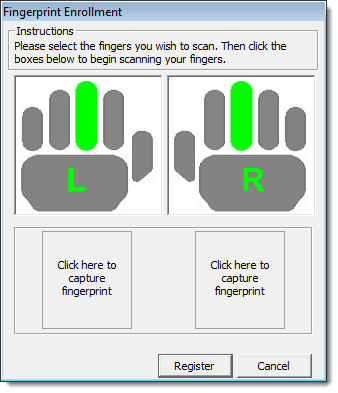
Complete the following to register a fingerprint:
Select the finger the client wants to register.
Select Click here to capture fingerprint under the hand with the finger the client wants to register.
The Capture Fingerprints window displays.
Tell the client to place their finger on the biometric reader until a preview of their fingerprint displays.
Tell the client to lift their finger off the reader.
Repeat Steps c and d until the client registers their fingerprint(s) successfully.
Click Register.
The Biometric Configuration window displays.
Click Close.
Close the Client Information window.
You can now verify the client's identity or speed up the check in process by getting the client to scan their fingerprint.
Registering an Employee's Fingerprints