Notes:
Make sure you have read the Fingerprint Registration Guidelines topic before you register an employee's fingerprints.
You must access Millennium with an administrator account to register an employee's fingerprints.
Select Management > User Logins.
The User Login Maintenance window displays.
Click the Listing tab.
Select the employee's user login and click the Maintenance tab.
Click Configure Biometric Access.
The Biometric Configuration window displays.
Click Scan.
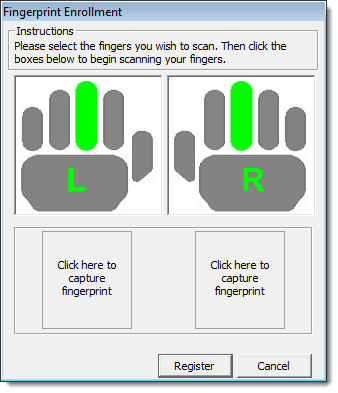
The Fingerprint Enrollment window displays.
Complete the following to register a fingerprint:
Select the finger the employee wants to register.
Select Click here to capture fingerprint under the hand with the finger the employee wants to register.
The Capture Fingerprints window displays.
Tell the employee to place their finger on the biometric reader until a preview of their fingerprint displays.
Tell the employee to left their finger off the reader.
Repeat Step c and d until the employee registers their fingerprint(s) successfully.
Click Register.
The Biometric Configuration window displays.
Click Close.
Click Edit and click the Options tab.
Complete the following:
Select Fingerprint Required When Logging In to force the employee to scan their finger when they log in to Millennium.
Note: When you select this option, the employee cannot log in to Millennium by entering their Login ID and password.
Select Fingerprint Required When Punching In to force the employee to scan their finger when they punch in/out.
Note: When you select this option, the employee cannot punch in/out by entering their Login ID and password.
Click Save.
The employee can now log in, punch in, and/or punch out by scanning their fingerprint.
Registering a Client's Fingerprints