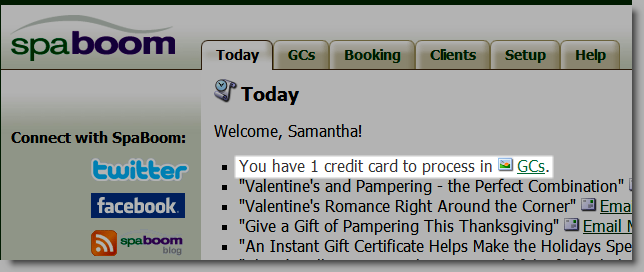
If you are not using Amazon Payments, Authorize.Net, or PayPal Website Payments Pro to process payments for gift certificates, you need to complete each gift certificate sale using the following steps.
Open a web browser and access www.spaboom.com.
The SpaBoom web site displays.
The Welcome page displays. A message displays at the top of the page indicating the number of transactions that require completion.
The GCs page displays with a list of transactions that require completion.
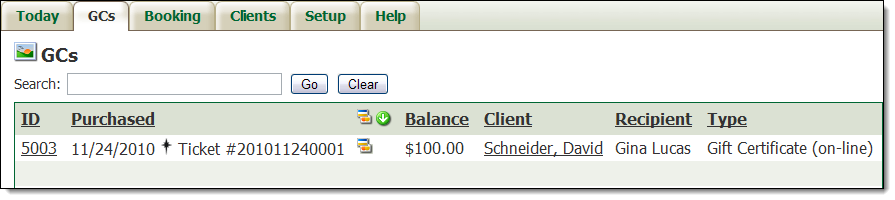
 next to the ticket number.
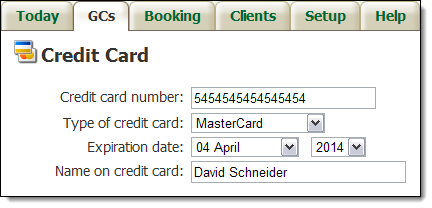
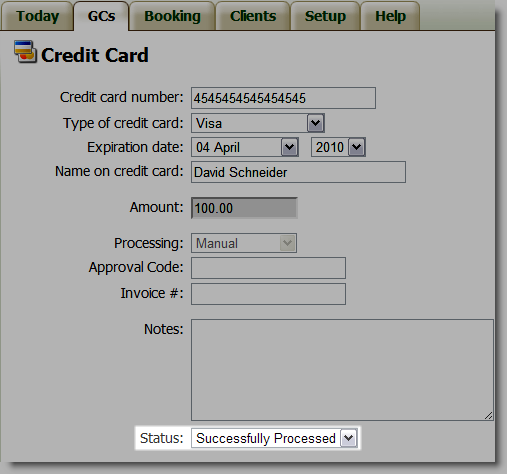
The Credit Card page displays.
Important: Leave this page open because you will need this information to finalize the transaction in Millennium.
 on the toolbar.
The Appointments for window displays.
The client's details display.
 .
.The Gift Certificates Balances window displays.

The Register displays.
The Gift Certificate Balances window displays.
Important: If a client purchases a mail order gift certificate, the purchaser will always display as the recipient in Millennium. The actual recipient can still redeem the gift certificate but you will need to adjust the recipient manually in Millennium when the client redeems the gift certificate.
The Register displays.
The Change Due window displays.
The Payment Types window displays.
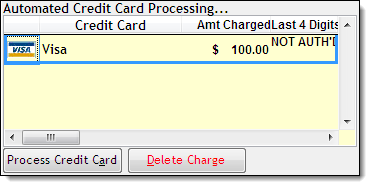
The Confirm Charge Deletion message displays.
The sale is complete.
Voiding a Gift Certificate Sale
Viewing SpaBoom Gift Certificate Sales