Click  on the toolbar.
Click on the toolbar.
The Register displays.
In the Paying Client field, type the client's name in "lastname,firstname" format and press Enter, or double-click in the field and locate the client's profile using the Quick Search window.
The client's details display.
In the Employee field, select the employee to credit with the sale.
Double-click in the Product field, select the product, and click OK. Alternatively, type the product code or scan the bar code on the product.
In the Quantity field, adjust the quantity as necessary.
The mail order fields display.
Click Sale.
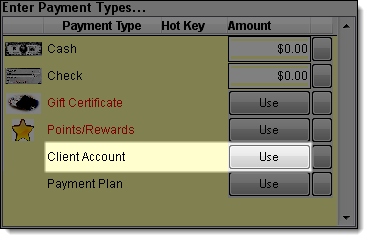
The Payment Types window displays.
Collect payment for the balance due.
Select Register > Mail Order Control.
The Mail Order Control window displays.
Select Shipped next to the mail order.

Tip: If you want to print a mailing label for the order, select the mail order and click Print Single Label. Insert a sheet of 1" x 2 5/8" size labels (Avery # 8160) into the printer and select the position of the first unused label on the Mailing Label Selection window, then click Ok. Click the Print button on the toolbar and print the label as normal.
Click Close.
Pack the products into a shipping box with a copy of the transaction receipt and send to the client.