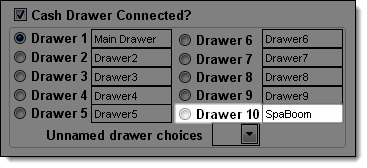
The next step is to configure settings for the SpaBoom interface in Millennium.
Access Millennium with administrator account.
Select Data > Business Information and Preferences.
The Business Information window displays.
Click Edit and click the This Cash Drawer tab.
Type "SpaBoom" in the Description field next to an unused cash drawer.
Click Save and click Close.
Select Data > Credit Cards/Payment Types.
The Credit Cards & Payment Types window displays.
Click  to move through the credit cards and payment types. If you locate a deactivated credit card or payment type, click Edit, deselect Inactive, and click Save.
Click Undel.
Select a deleted credit card/payment type and click Undel.
Repeat Steps 8 and 9 as necessary.
Select Data > Gift Certificates Types.
The Gift Certificate Types window displays.
Complete the following:
Click New.
Type "SpaBoom" in the Gift Certificate Type field.
Type "0" in the Expires field.
Click Save.
Close the Gift Certificate Types window.
Select Data > Referral Types.
The Referral Types window displays.
Complete the following:
Click New.
Type "SPABOOM" in the Referral Code field.
Type "SpaBoom" in the Description field.
Click Save.
Close the Referral Types window.
Select Data > Employees > Employee Information.
The Employee Information window displays.
Complete the following:
Click New.
Type "SpaBoom" in the First Name, Last Name, Code, and Employee ID fields.
Select "Service Level 1" in the Service Level field.
Click Female.
Click Save.
Click No.
Click OK.
Close the Employee Information window.
Select Management > User Logins.
The User Login Maintenance window displays.
Complete the following:
Click New.
Type "SpaBoom" in the Display Name field.
Type "SPABOOM" in the Login ID field.
Type "spaboom12*" in the Password field.
Select "SPABOOM: SpaBoom, SpaBoom" in the Employee (if any) field.
Click the Member of tab.
Select the ADMINISTRATOR security group.
Click Save.
Close the User Login Maintenance window.
6. Enter Your SpaBoom Account Details in Millennium