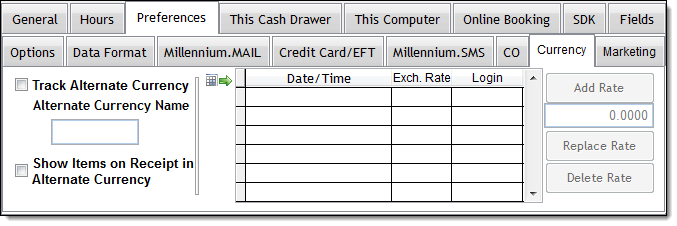
If you accept a second currency for payment, you can configure Millennium to display prices in the alternate currency.
Example: If your business is located in the USA, you can configure Millennium to display prices in Mexican Pesos. This allows employees to view prices in both US Dollars and Mexican Pesos.
When you configure an alternate currency, receipts show prices in two currencies and you can view the data on selected reports in the alternate currency.
Select Data > Business Information and Preferences.
The Business Information window displays.
Notes:
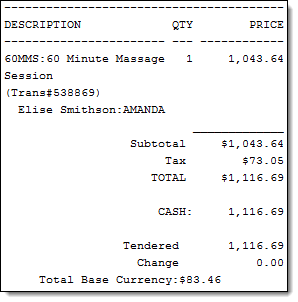
If you select this option, receipts display with the line items in the alternate currency and the total in the primary currency listed as the Total Base Currency amount.
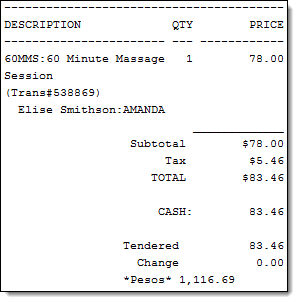
If you do not select this option, receipts display with the line items in the primary currency and the total in the alternate currency listed under the change amount.
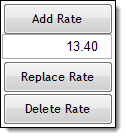
Example: If your primary currency is US Dollars (USD) and you want to set up Mexican Pesos (MXN) as the alternate currency, type the current USD to MXN exchange rate.
Notes:
You should change the exchange rate for the alternate currency daily before you open for business. To change the exchange rate, you need to add a new rate to the list on the Currency tab by repeating Steps 6-9.
Important: You must add a new rate each time the exchange rate changes so that reports run for multiple days display the correct totals. If you choose to update the current exchange rate rather than add a new rate each time, your reports will use the current exchange rate regardless of the rate used at the time of the transaction.
To update an incorrect exchange rate, select the rate in the list, type the new rate, click Replace Rate, and click Yes.
To delete an exchange rate, select the rate in the list, click Delete Rate, and click Yes.
Tips:
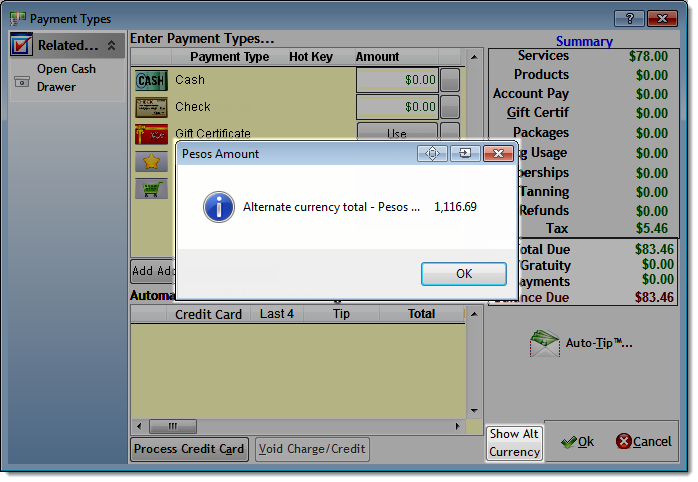
To view the balance due for a transaction in the alternate currency, click Show Alt Currency on the Payment Types window.
To print the monetary values on the MR049, MR085, and MR200 reports in the alternate currency, select Use Alternate Currency on the Reports & Graphs window. Refer to the Reports User Guide for instructions on how to run these reports.
Configuring the Credit Card Processing Interface