Click  on the toolbar.
Click on the toolbar.
The Appointment Book displays with today's appointments.
The Register displays with a ticket for the services received by the guest.
The Payment Types window displays.
Click Post to Guest.
The Post to Guest window displays.
The guest's details display.
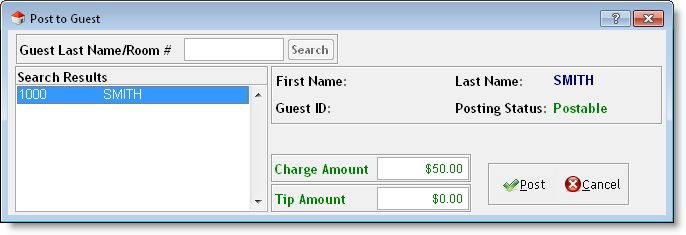
Tip: If there is more than one guest with the same last name, select the correct guest in the Search Results list.
The Change Due window displays.
If the guest did not add a tip, click Ok to finalize the transaction.
If the guest added a tip, click Apply Tips, apply the tip to the relevant employee(s), and click Ok twice to finalize the transaction.