Click  on the toolbar.
Click on the toolbar.
The Appointment Book displays with today's appointments.
The Register displays with a ticket for the services received by the guest.
The Post Charges to Guest Room window displays.
Tip: If the Post Charges to Guest Room window does not display, click Post to Guest on the Payment Types window.
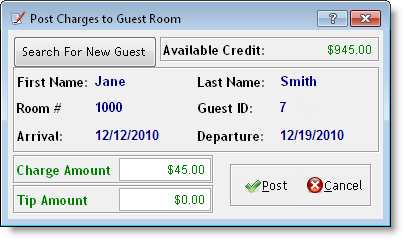
Post the amount due to the guest's folio = Click Post.
Post the amount due to another guest's folio = Click Search For New Guest, perform a search for the guest using their last name or room number, and click Post.
The Change Due window displays.
If the guest did not add a tip, click Ok to finalize the transaction.
If the guest added a tip, click Apply Tips, apply the tip to the relevant employee(s), and click Ok twice to finalize the transaction.