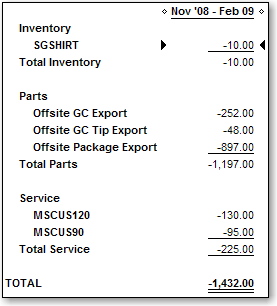
The Refunds Summary report displays details of the refunds processed during the report date range.
Tip: Run The Refunds Summary report to verify that details of refunds uploaded to QuickBooks successfully. If you run the MR080: Register Summary report in Millennium, the refund totals that display on the right side of that report should match the totals that display on the Refunds Summary report if you select the same date range for both reports.
Notes:
If items display under Parts - Unknown Item on the report, you need to assign these items to a product/service class in Millennium.
Open your company file in QuickBooks.
Open AccountSync.
Select the location for which to run the report.

Select Reports > Refunds Summary.
The Custom Summary Report window opens in QuickBooks with the Refunds Summary report displayed. The report shows details for the last date range of transactions uploaded to QuickBooks.
Complete the following as necessary:
View the data for a different data range = Select a new date range and click Refresh.
(Complete mode only) View itemized totals for each employee= Select "Rep" in the Columns field and click Refresh.