

-
Open Millennium.
-
Select Data > Credit Cards/Payment Types.
The Credit Cards & Payment Types window displays.
-
Complete the following:
-
Click New.
-
Type "Amazon" in the Payment Type field.
-
Click Save.
-
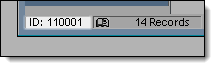
Note the ID number that displays in the bottom left corner of the window.
-
Close the Credit Cards & Payment Types window.
-
Open a web browser and access www.spaboom.com.
The SpaBoom web site displays.
- Type your login credentials and click Login.
- Click the Setup tab.
- Click the Basics link under Setup.
The Basics page displays.
- Click the Harms Millennium link under Tasks.
The Harms Millennium page displays.
- In the Payment Type ID field, type the ID number you noted in Step 3d.
- Click Save.
- Open the Millennium folder on the computer where you have the Millennium database located.
Tip: The default location for the Millennium folder is C:\Harms\Millennium\.
-
Open the HarmsBridgeMillennium.ini file in Notepad.
-
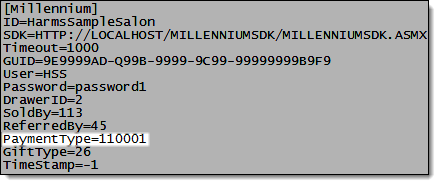
In the Payment Type field, type the ID number you noted in Step 3d.
-
Save and close the HarmsBridgeMillennium.ini file.
-
Complete one of the following:
-
Press Windows Logo+R, type "services.msc", and press Enter.
-
Select Start > All Programs > Accessories > Run, type "services.msc", and press Enter.
-
On the Start screen, type "services.msc"and press Enter.
The Services window displays.
-
Scroll down to display the BoomTime Service.
-
Right-click on the BoomTime Service and select Restart.
The setup is complete and the SpaBoom interface is now ready to use.
-
Open Millennium.
-
Select Data > Credit Cards/Payment Types.
The Credit Cards & Payment Types window displays.
-
Complete the following:
-
Click New.
-
Type "Authorize.Net" in the Payment Type field.
-
Click Save.
-
Note the ID number that displays in the bottom left corner of the window.
-
Close the Credit Cards & Payment Types window.
-
Open a web browser and access www.spaboom.com.
The SpaBoom web site displays.
- Type your login credentials and click Login.
- Click the Setup tab.
- Click the Basics link under Setup.
The Basics page displays.
- Scroll down to the Credit Card Processing section and complete the following:
-
In the Accepted credit cards field, select the credit cards you accept for payment.
-
In the Processing field, select "Authorize.Net".
-
In the API login field, type the API Login for your Authorize.Net account.
-
In the Transaction Key field, type the transaction key for your Authorize.Net account.
-
Select Use Server Integration Method (SIM).
- Scroll to the top of the page and click the Harms Millennium link under Tasks.
The Harms Millennium page displays.
- In the Payment Type ID field, type the ID number you noted in Step 3d.
- Click Save.
-
Open the Millennium folder on the computer where you have the Millennium database located.
Tip: The default location for the Millennium folder is C:\Harms\Millennium\.
-
Open the HarmsBridgeMillennium.ini file in Notepad.
-
In the Payment Type field, type the ID number you noted in Step 3d.
-
Save and close the HarmsBridgeMillennium.ini file.
-
Complete one of the following:
-
Press Windows Logo+R, type "services.msc", and press Enter.
-
Select Start > All Programs > Accessories > Run, type "services.msc", and press Enter.
-
On the Start screen, type "services.msc"and press Enter.
The Services window displays.
-
Scroll down to display the BoomTime Service.
-
Right-click on the BoomTime Service and select Restart.
The setup is complete and the SpaBoom interface is now ready to use.