You should issue a refund in situations where you want to offer a goodwill gesture by giving the client their money back, such as when a client received poor service. You should also process a refund if a client wants to exchange an unused product, package, or series for a different item.
Click
on the toolbar.
The Register displays.
In the Paying Client field, type the client's name in "lastname,firstname" format and press Enter, or double-click in the field and locate the client's profile using the Quick Search window.
The client's details display.
The Refunds window displays.
Double-click in the Products field, select the product, and click OK.
Adjust the entry in the Qty field as necessary.
Select No Product Tax if you do not want to refund the sales tax paid.
Select Resell if you are going to resell the product(s).
Click Sale.
The cash drawer opens and the Change Due window displays.
Remove the amount you need to refund and present to the client.
Close the drawer.
Click Ok.
Refund as a credit to the client's credit/debit card
Click Sale.
The Change Due window displays.
Click Cancel.
The Payment Types window displays.
Click Process Credit Card.
Tip: Click Yes if the Add Charge/Credit to Finalized Transaction message displays.
The Credit Card Authorization window displays.
Complete the following to enter the client's card details:
Credit card = Click Use Card on File, swipe the client's card, or type the card details.
Debit card = Swipe the client's card.
Important: If you type a debit card number, Element will decline the payment.
Click Authorize.
Click Yes.
A notification displays to confirm the credit approval.
Important: If you cannot get approval for the credit, call Element for further assistance.
Click OK.
The Charge/Credit Receipt window displays.
Complete the following as necessary:
Print the merchant copy of the refund receipt = Click Merchant Copy and click Print.
Print the client copy of the refund receipt = Click Client Copy and click Print.
Click Close.
The Change Due window displays.
Click Ok.
Refund as a credit to the client's account
Note the amount you must refund to the client.

Click Accnt Paymt.
The Account Payments window displays.
In the Payment Amount field, type the amount you must refund to the client.

The Over Payment - Credit message displays.
Click OK.
Click Save.
Click OK.
Click X .
Click Sale.
The Change Due window displays.
Click Ok.
Click
on the toolbar.
The Register displays.
In the Paying Client field, type the client's name in "lastname,firstname" format and press Enter, or double-click in the field and locate the client's profile using the Quick Search window.
The client's details display.
In the Employee field, select the employee to credit with the sale.
Double-click in the Product field, select the product, and click OK.
In the Quantity field, adjust the quantity if the client is purchasing multiple items.
The Refunds window displays.
Double-click in the Products field, select the product, and click OK.
Adjust the entry in the Qty field as necessary.
Select No Product Tax if you do not want to refund the sales tax paid.
Select Resell if you are going to resell the product(s).
If the client owes money because the value of the new product(s) is more than the value of the refunded product(s), click Sale and collect payment for the balance due as normal.
If you owe the client money because the value of the new product(s) is less than the value of the refunded product(s), refund the difference back to the client.
Click Sale.
The cash drawer opens and the Change Due window displays.
Remove the amount you need to refund and present to the client.
Close the drawer.
Click Ok.
Refund as a credit to the client's credit/debit card
Click Sale.
The Change Due window displays.
Click Cancel.
The Payment Types window displays.
Click Process Credit Card.
Tip: Click Yes if the Add Charge/Credit to Finalized Transaction message displays.
The Credit Card Authorization window displays.
Complete the following to enter the client's card details:
Credit card = Click Use Card on File, swipe the client's card, or type the card details.
Debit card = Swipe the client's card.
Important: If you type a debit card number, Element will decline the payment.
Click Authorize.
Click Yes.
A notification displays to confirm the credit approval.
Important: If you cannot get approval for the credit, call Element for further assistance.
Click OK.
The Charge/Credit Receipt window displays.
Complete the following as necessary:
Print the merchant copy of the refund receipt = Click Merchant Copy and click Print.
Print the client copy of the refund receipt = Click Client Copy and click Print.
Click Close.
The Change Due window displays.
Click Ok.
Refund as a credit to the client's account
Note the amount you must refund to the client.
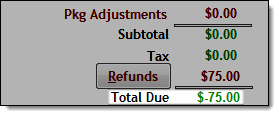
Click Accnt Paymt.
The Account Payments window displays.
In the Payment Amount field, type the amount you must refund to the client.
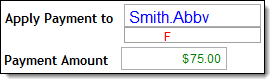
The Over Payment - Credit message displays.
Click OK.
Click Save.
Click OK.
Click X .
Click Sale.
The Change Due window displays.
Click Ok.

Click
on the toolbar.
The Register displays.
In the Paying Client field, type the client's name in "lastname,firstname" format and press Enter, or double-click in the field and locate the client's profile using the Quick Search window.
The client's details display.
The Refunds window displays.
Click Sale.
The cash drawer opens and the Change Due window displays.
Remove the amount you need to refund and present to the client.
Close the drawer.
Click Ok.
Refund as a credit to the client's credit/debit card
Click Sale.
The Change Due window displays.
Select one of the following options:
If you want to refund the tip for the service, proceed to Step c.
If you do not want to refund the tip for the service, proceed to Step f.
Click Apply Tips.
The Employee Tips window displays.
In the Tip field next to the service provider's name, type the tip amount as a negative amount.
Example: If you need to refund a $10 tip, type "-10.00" next to the service provider's name.
Click Ok.
The Change Due window displays.
Click Cancel.
The Payment Types window displays.
Click Process Credit Card.
Tip: Click Yes if the Add Charge/Credit to Finalized Transaction message displays.
The Credit Card Authorization window displays.
Complete the following to enter the client's card details:
Credit card = Click Use Card on File, swipe the client's card, or type the card details.
Debit card = Swipe the client's card.
Important: If you type a debit card number, Element will decline the payment.
Click Authorize.
Click Yes.
A notification displays to confirm the credit approval.
Important: If you cannot get approval for the credit, call Element for further assistance.
Click OK.
The Charge/Credit Receipt window displays.
Complete the following as necessary:
Print the merchant copy of the refund receipt = Click Merchant Copy and click Print.
Print the client copy of the refund receipt = Click Client Copy and click Print.
Click Close.
The Change Due window displays.
Click Ok.
Refund as a credit to the client's account
Note the amount you must refund to the client.

Click Accnt Paymt.
The Account Payments window displays.
In the Payment Amount field, type the amount you must refund to the client.

The Over Payment - Credit message displays.
Click OK.
Click Save.
Click OK.
Click X .
Click Sale.
The Change Due window displays.
Click Ok.
Click
on the toolbar.
The Register displays.
In the Paying Client field, type the client's name in "lastname,firstname" format and press Enter, or double-click in the field and locate the client's profile using the Quick Search window.
The client's details display.
The Refunds window displays.
Tip: If the client has multiple gift certificates, select the gift certificate to refund in the Gift Certificate Selection field and click + .

In the Refund Amt field, type the amount of gift certificate credit to refund.
In the Tip Refund field, type the amount of prepaid tip to refund.
Click Sale.
The cash drawer opens and the Change Due window displays.
Remove the amount you need to refund and present to the client.
Close the drawer.
Click Ok.
Refund as a credit to the client's credit/debit card
Click Sale.
The Change Due window displays.
Click Cancel.
The Payment Types window displays.
Click Process Credit Card.
Tip: Click Yes if the Add Charge/Credit to Finalized Transaction message displays.
The Credit Card Authorization window displays.
Complete the following to enter the client's card details:
Credit card = Click Use Card on File, swipe the client's card, or type the card details.
Debit card = Swipe the client's card.
Important: If you type a debit card number, Element will decline the payment.
Click Authorize.
Click Yes.
A notification displays to confirm the credit approval.
Important: If you cannot get approval for the credit, call Element for further assistance.
Click OK.
The Charge/Credit Receipt window displays.
Complete the following as necessary:
Print the merchant copy of the refund receipt = Click Merchant Copy and click Print.
Print the client copy of the refund receipt = Click Client Copy and click Print.
Click Close.
The Change Due window displays.
Click Ok.
Refund as a credit to the client's account
Note the amount you must refund to the client.

Click Accnt Paymt.
The Account Payments window displays.
In the Payment Amount field, type the amount you must refund to the client.

The Over Payment - Credit message displays.
Click OK.
Click Save.
Click OK.
Click X .
Click Sale.
The Change Due window displays.
Click Ok.
Click
on the toolbar.
The Register displays.
In the Paying Client field, type the client's name in "lastname,firstname" format and press Enter, or double-click in the field and locate the client's profile using the Quick Search window.
The client's details display.
The Refunds window displays.
Click Sale.
The cash drawer opens and the Change Due window displays.
Remove the amount you need to refund and present to the client.
Close the drawer.
Click Ok.
Refund as a credit to the client's credit/debit card
Click Sale.
The Change Due window displays.
Click Cancel.
The Payment Types window displays.
Click Process Credit Card.
Tip: Click Yes if the Add Charge/Credit to Finalized Transaction message displays.
The Credit Card Authorization window displays.
Complete the following to enter the client's card details:
Credit card = Click Use Card on File, swipe the client's card, or type the card details.
Debit card = Swipe the client's card.
Important: If you type a debit card number, Element will decline the payment.
Click Authorize.
Click Yes.
A notification displays to confirm the credit approval.
Important: If you cannot get approval for the credit, call Element for further assistance.
Click OK.
The Charge/Credit Receipt window displays.
Complete the following as necessary:
Print the merchant copy of the refund receipt = Click Merchant Copy and click Print.
Print the client copy of the refund receipt = Click Client Copy and click Print.
Click Close.
The Change Due window displays.
Click Ok.
Refund as a credit to the client's account
Note the amount you must refund to the client.

Click Accnt Paymt.
The Account Payments window displays.
In the Payment Amount field, type the amount you must refund to the client.

The Over Payment - Credit message displays.
Click OK.
Click Save.
Click OK.
Click X .
Click Sale.
The Change Due window displays.
Click Ok.
Click
on the toolbar.
The Register displays.
In the Paying Client field, type the client's name in "lastname,firstname" format and press Enter, or double-click in the field and locate the client's profile using the Quick Search window.
The client's details display.
The Pkg/series Purchase window displays.
The Package Selection window displays.
In the Purchased For field, type the client's name in "lastname,firstname" format, or double-click in the field and locate the recipient's profile using the Quick Search window.
In the Sold By field, select the employee to credit with the sale.
Pay commission to two employees for selling the package/series
Click Split Line.
The Split Line window displays.
Select the type of split commission to use or change the commission percentages.
Select the second employee to pay commission.
Click Ok.
Click %off next to the Price field.
Type a percentage off discount in the Enter % to Subtract field.
In the Expiration field, select an expiration date.
In the Pre-Paid Tip field, type the amount of prepaid tip to sell with the package/series.
The Refunds window displays.
If the client owes money because the value of the new package/series is more than the value of the refunded package/series, click Sale and collect payment for the balance due as normal.
If you owe the client money because the value of the new package/series is less than the value of the refunded package/series, refund the difference back to the client.
Click Sale.
The cash drawer opens and the Change Due window displays.
Remove the amount you need to refund and present to the client.
Close the drawer.
Click Ok.
Refund as a credit to the client's credit/debit card
Click Sale.
The Change Due window displays.
Click Cancel.
The Payment Types window displays.
Click Process Credit Card.
Tip: Click Yes if the Add Charge/Credit to Finalized Transaction message displays.
The Credit Card Authorization window displays.
Complete the following to enter the client's card details:
Credit card = Click Use Card on File, swipe the client's card, or type the card details.
Debit card = Swipe the client's card.
Important: If you type a debit card number, Element will decline the payment.
Click Authorize.
Click Yes.
A notification displays to confirm the credit approval.
Important: If you cannot get approval for the credit, call Element for further assistance.
Click OK.
The Charge/Credit Receipt window displays.
Complete the following as necessary:
Print the merchant copy of the refund receipt = Click Merchant Copy and click Print.
Print the client copy of the refund receipt = Click Client Copy and click Print.
Click Close.
The Change Due window displays.
Click Ok.
Refund as a credit to the client's account
Note the amount you must refund to the client.

Click Accnt Paymt.
The Account Payments window displays.
In the Payment Amount field, type the amount you must refund to the client.

The Over Payment - Credit message displays.
Click OK.
Click Save.
Click OK.
Click X .
Click Sale.
The Change Due window displays.
Click Ok.
Click
on the toolbar.
The Register displays.
In the Paying Client field, type the client's name in "lastname,firstname" format and press Enter, or double-click in the field and locate the client's profile using the Quick Search window.
The client's details display.
The Refunds window displays.
Click Sale.
The cash drawer opens and the Change Due window displays.
Remove the amount you need to refund and present to the client.
Close the drawer.
Click Ok.
Refund as a credit to the client's credit/debit card
Click Sale.
The Change Due window displays.
Click Cancel.
The Payment Types window displays.
Click Process Credit Card.
Tip: Click Yes if the Add Charge/Credit to Finalized Transaction message displays.
The Credit Card Authorization window displays.
Complete the following to enter the client's card details:
Credit card = Click Use Card on File, swipe the client's card, or type the card details.
Debit card = Swipe the client's card.
Important: If you type a debit card number, Element will decline the payment.
Click Authorize.
Click Yes.
A notification displays to confirm the credit approval.
Important: If you cannot get approval for the credit, call Element for further assistance.
Click OK.
The Charge/Credit Receipt window displays.
Complete the following as necessary:
Print the merchant copy of the refund receipt = Click Merchant Copy and click Print.
Print the client copy of the refund receipt = Click Client Copy and click Print.
Click Close.
The Change Due window displays.
Click Ok.
Refund as a credit to the client's account
Note the amount you must refund to the client.

Click Accnt Paymt.
The Account Payments window displays.
In the Payment Amount field, type the amount you must refund to the client.

The Over Payment - Credit message displays.
Click OK.
Click Save.
Click OK.
Click X .
Click Sale.
The Change Due window displays.
Click Ok.
related links
© 2017 Millennium by Millennium Systems International. All rights reserved.