The final step is to configure Millennium to work with the Call Center Booking component.
Notes:
The following guide explains how to complete the configuration in Windows Server 2008. Screens may vary depending on the operating system you are using.
You must complete this step in Millennium on the server where you have the Millennium databases located.
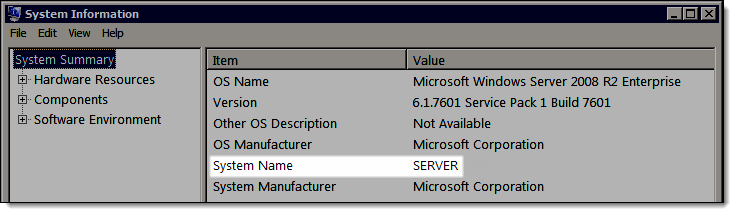
Select Start > All Programs > Accessories > System Tools > System Information.
The System Information window displays.
Note the name that displays in the System Name field (highlighted below).
Access Millennium with an administrator account.
Select Data > Business Information and Preferences.
The Business Information window displays.
Click Edit, click the Preferences tab, and select "General" in the Category field.
Click Configure Biometric Access.
The Biometric Settings window displays.
Click Edit.
In the Centralized Booking Data Folder field, type "\\XXXXX\Harms\Centralized Booking Biometric Database\", where "XXXXX" is the name of the server you noted in Step 2.

Click Save.
Click Close.
Close Millennium.
Open the Control Panel and double-click M2SYS BioPlugIn Server.
The BioPlugIn Server Preferences window displays.
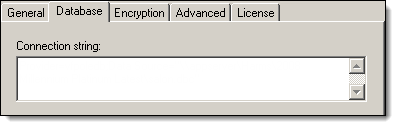
Clear the entry in the Connection String field.
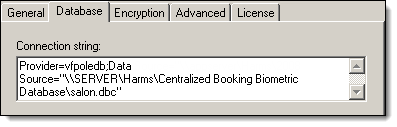
Type Provider=vfpoledb;Data Source="\\XXXXX\Harms\Centralized Booking Biometric Database\salon.dbc" in the Connection String field, where "XXXXX" is the name of the server you noted in Step 2.
The setup is complete.
More Info: Click here for instructions on how to use the biometric access features in Millennium.