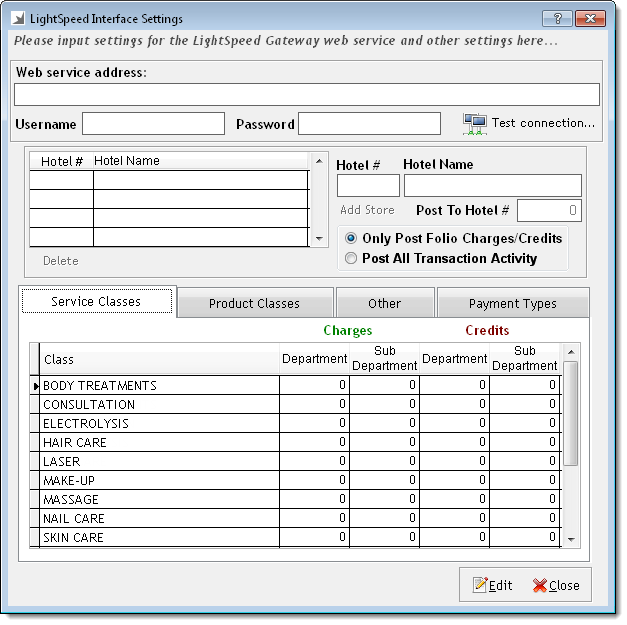
displays.
The next step is to configure settings for the Galaxy LightSpeed interface in Millennium.
Notes:
You also need to know the correct revenue center to use for each service class, product class, non-monetary payment type, monetary payment type. You can obtain this information from the Galaxy LightSpeed application.
Access Millennium with an administrator account.
Select Data > Business Information and Preferences.
The Business Information window displays.
The LightSpeed Interface Settings window displays.
In the Web service address field, type the address for the Galaxy LightSpeed Web Service.
Note: Contact Galaxy Customer Support if you do not know this address.
In the Username field, type the user name for your Galaxy LightSpeed account.
In the Password field, type the password for your Galaxy LightSpeed account.
In the Hotel # field, type the identifying number for the Galaxy LightSpeed Property Management System (PMS) at your hotel.
In the Hotel Name field, type the name of your hotel.
In the Post To Hotel # field, type the identifying number for the Galaxy LightSpeed PMS at your hotel.
In the Hotel # field, type the identifying number for the Galaxy LightSpeed PMS at the hotel where you need to post charges.
In the Hotel Name field, type the name of the hotel where you need to post charges.
In the Post To Hotel # field, type the identifying number for the Galaxy LightSpeed PMS at the hotel where you need to post charges.
Only Post Folio Charges/Credits = Select to transfer details of charges and credits to Galaxy LightSpeed.
Post All Transaction Activity = Select to transfer details of all transactions to Galaxy LightSpeed.
Note: If you want to post service charges to a separate revenue center, select the Post Service Charges Separately option and type the relevant revenue center.
5. Configure Security Settings